Custom Field Date Alerts
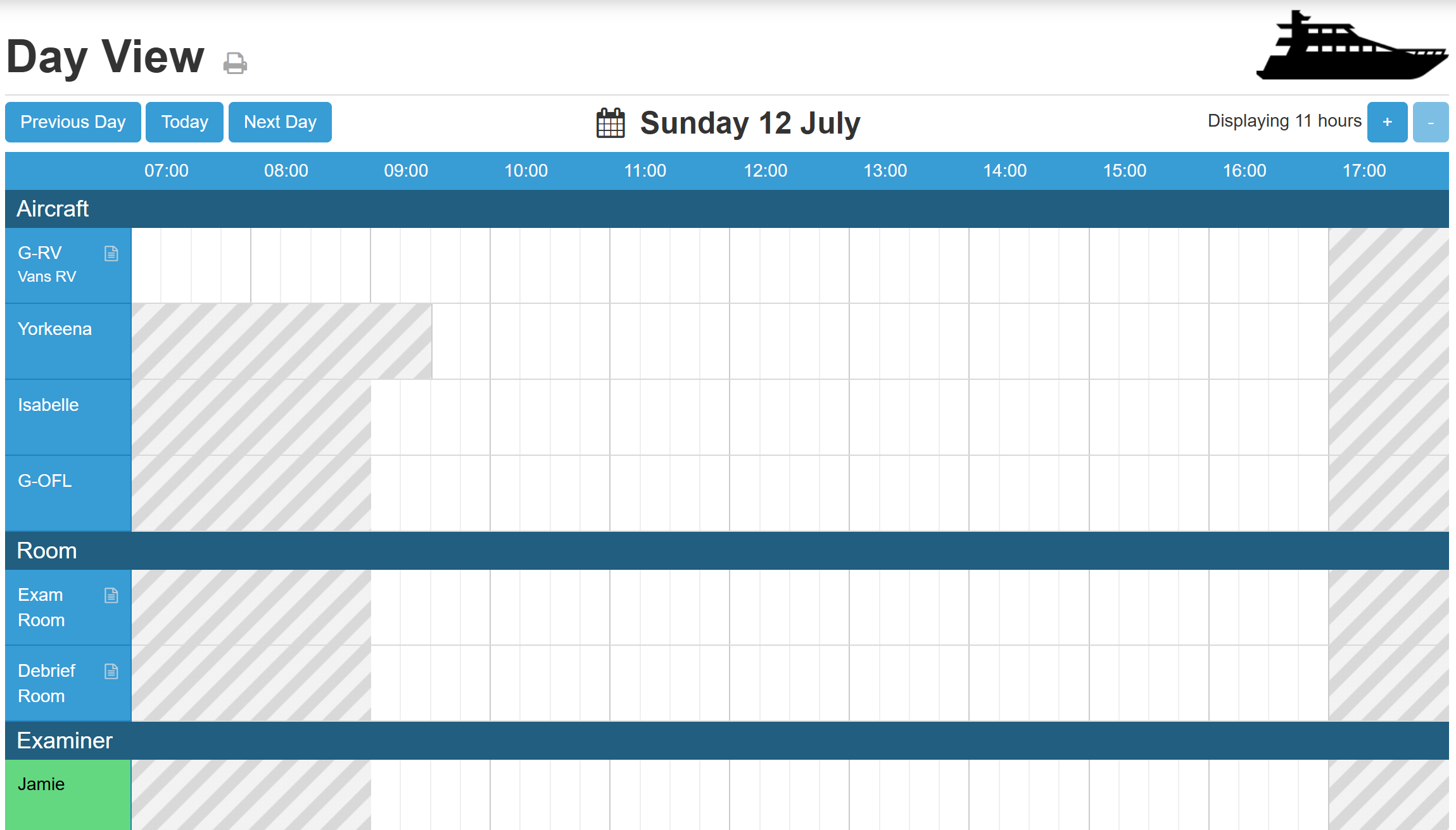
Never miss a deadline again! With Shlott's new custom date alerts, your calendar now works for you. Step 1:
- At the top menu bar, select 'manage group'
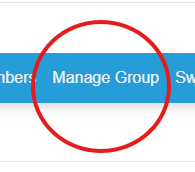 Step 2:
- Select the 'categories' icon:
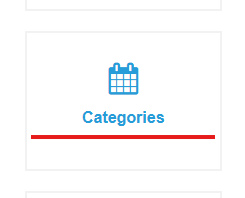
Step 3:
- Then select the category (object) that you want to create the expiry date for:
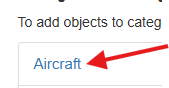 Step 4:
- Select the 'edit category' in blue:
Step 5:
- Select the 'add new property' button:
Step 6:
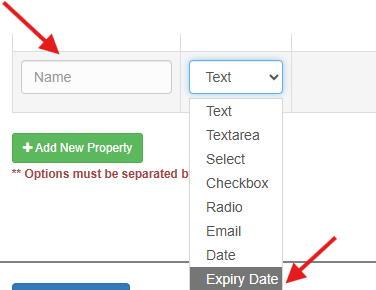
- You will have the option to create a new property, select an expiry date from the drop-down list'
 Step 7:
- Select 'save changes' to save your new property:
 Step 8:
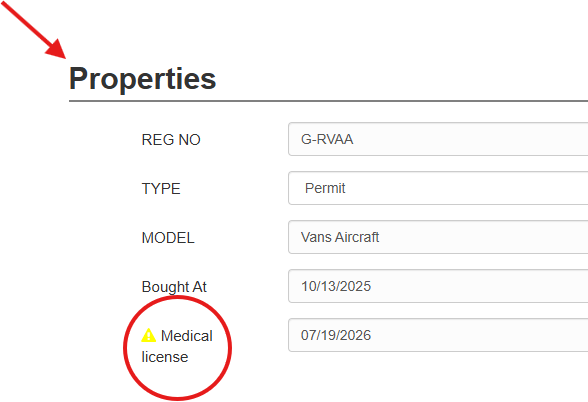
- Upon selecting the original category, you will now see your new property titled 'medical licence' below
 Step 9:
- From the drop-down menu, select the date of expiry:
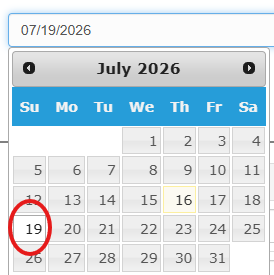
Step 10:
- Then, from the day view, you will see the icon appear next to the category:
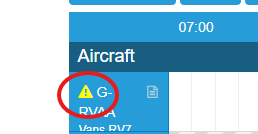
You can also create an expiry date for members:
Step 1:
- At the top of the page, select 'manage group'
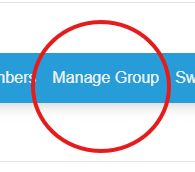 Step 2:
- Scroll down to 'manage members' and select 'custom fields'
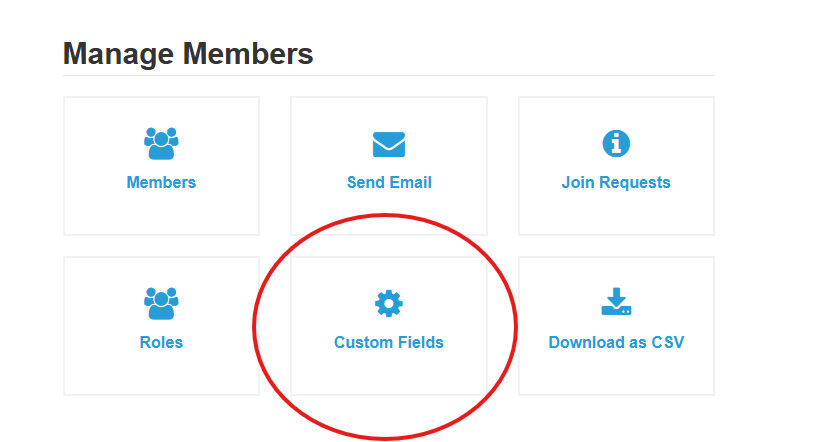 Step 3:
- Select 'add new field'
 Step 4:
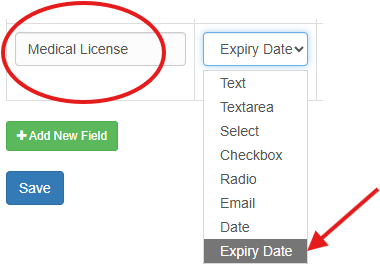
- Name your custom field (titled 'Medical Licence') here and select 'expiry date'. Then select 'save'.
 Step 5:
- To set an expiry date for a specific member, go to the 'members' tab at the top of the page
 Step 5:
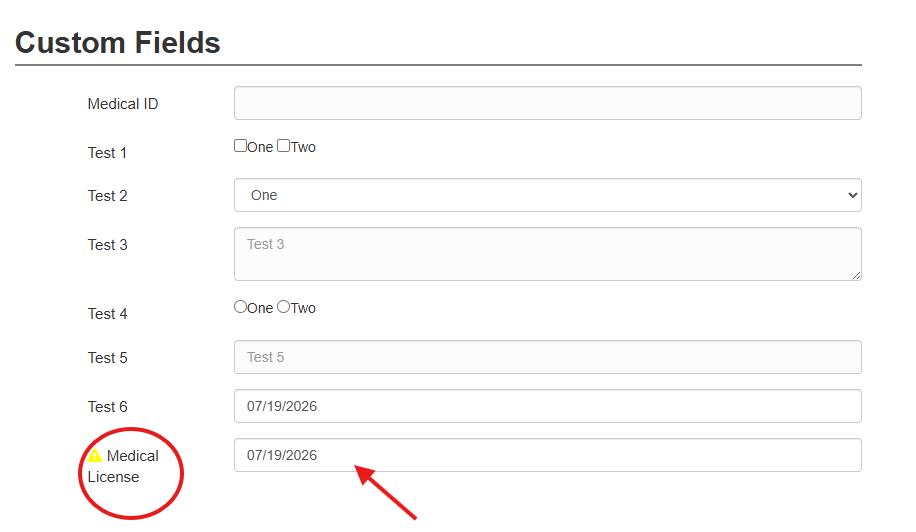
- Select the name of the member you would like to edit, then scroll down to 'custom fields'. Select the date of expiry.
Never miss a deadline again! With Shlott's new custom date alerts, your calendar now works for you.
Simply select any calendar object (aicrafts, boats, instructors) and set alerts for any important expiry dates (MOT deadlines, instructor license renewals) and more.
When an expiry date is fast approaching, you'll see a clear warning symbol easily viewed from your day view - so nothing slips through the cracks!
Key benefits of date alerts:
- Visual reminders on upcoming expiry dates
- Easy viewing
- Reduce confusion
Who can use date alerts?
- This is a free feature available for all groups but managed exclusively by group admins
How do date alerts work?
You have the option to create expiry dates for categories (objects) and/or members (eg licence expiries).
For categories:
Step 1:
- At the top menu bar, select 'manage group'
Step 2:
- Select the 'categories' icon:
Step 3:
- Then select the category (object) that you want to create the expiry date for:
Step 4:
- Select the 'edit category' in blue:
Step 5:
- Select the 'add new property' button:
Step 6:
- You will have the option to create a new property, select an expiry date from the drop-down list'
Step 7:
- Select 'save changes' to save your new property:
Step 8:
- Upon selecting the original category, you will now see your new property titled 'medical licence' below
Step 9:
- From the drop-down menu, select the date of expiry:
Step 10:
- Then, from the day view, you will see the icon appear next to the category:
You can also create an expiry date for members:
Step 1:
- At the top of the page, select 'manage group'
Step 2:
- Scroll down to 'manage members' and select 'custom fields'
Step 3:
- Select 'add new field'
Step 4:
- Name your custom field (titled 'Medical Licence') here and select 'expiry date'. Then select 'save'.
Step 5:
- To set an expiry date for a specific member, go to the 'members' tab at the top of the page
Step 5:
- Select the name of the member you would like to edit, then scroll down to 'custom fields'. Select the date of expiry.
Step 6:
- Select 'save changes'

Step 7:
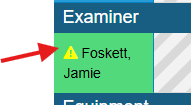
- On the day view, you will now see the warning icon next to the member who has an upcoming expiry date:
Helpful resources:
Find more useful information on Shlott here: